
Uncategorised

Funding for Training

Would you like to join our online Figurenotes course, but don’t have the budget? We can help with that.

YMI logo. A plectrum shaped background of dark blue overlaps slightly off centre with the same in light blue and red. White text reads 'Youth Music Initiative'. There are 5 lines representing a stave below the words. A quaver note sits in the top right of the plectrum shape.

The wonderful YMI CPD fund is open for 2023! This is one of our favourite funding pots, as it applies to so many of our Figurenoters.

Funding is available for training and continued professional development. Aimed at both individuals and organisations, you can apply for money to attend training such as our Figurenotes: Developing Your Practice course.

To qualify, all or part of your work must be outwith schools and benefit the youth music sector in Scotland. So if you work in Scotland with youth groups, as an instrumental teacher, or a music facilitator, get applying before it runs out.

https://www.scottishmusiccentre.com/ymi-cpd

A screenshot of a zoom call. 8 smiling people on the call are tiled across the screen.

In the past there has been about an 8 week turnaround on decisions, but please bear in mind that it is a continuous fund and the money may run out before the final deadline date. We recommend applying as soon as possible.

You can book your place on the course using the booking form below. Just let us know that you’ve applied for funding and we will hold your spot while a decision is made. The Scottish Music Centre is very supportive of our training and has informed us that this course is just what they’re looking to fund.

Let us know if there is anything we can do to support your application and we wish you the best of luck. Find out more about Figurenotes: Developing Your Practice by visiting the training section of our website. You can find the booking form using the button below.

Uncategorised

Notate – Computer keyboard as MIDI keyboard

Did you know you can use your computer keyboard to input notes into your Figurenotes notation programme?

We’ve got a lot of different ways to input notes into your Figurenotes score, so you are spoilt for choice. This one may not be as obvious as others, so we thought it needed a blog post. We hope this helps you find your ideal way to create music.

  1. Once you’ve logged in to Notate.Figurenotes.org and have your score open, untick the ‘Lock Piano Keys’ box at the top of the page. This will allow you to use your computer keyboard to enter notes.
Screenshot of notation programme with red circle and arrow showing where the Lock Piano Keys checkbox is. It is to the right of the onscreen keyboard underneath the toolbar.

An image of the note palette from the Figurenotes notation programme. Figurenotes shapes are presented in a grid. Below them there is a drop down menu with 'Note Length' written above it. A red arrow points to this menu.

Each note entered will be one crotchet beat, unless you change the note duration settings on the right hand side of the page.

This should make it easier and quicker to enter notes into your score. If you want to use your keyboard shortcuts again, just make sure you tick the ‘lock keys’ box again.

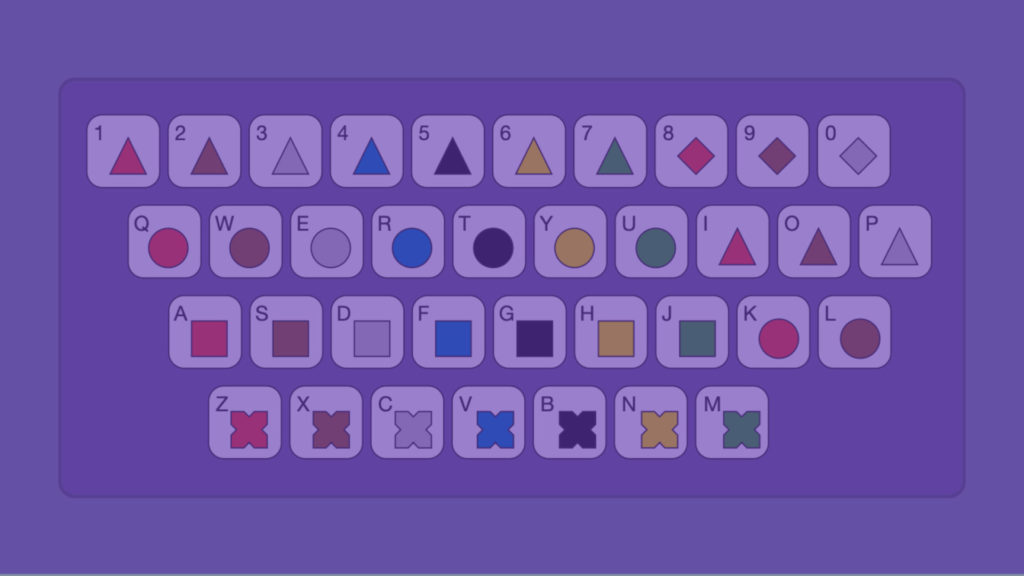
We’ve made this handy diagram to help you understand your computer keyboard as a MIDI keyboard. You can find this in our Notate FAQs (scroll down to ‘Inputting Notes’) or download it in png or PDF form below.

A diagram of a computer keyboard containing numbers 1-0 and all letters. Each key contains a Figurenotes note.
Find more tutorials on YouTube
Uncategorised

Prestonfield Pop Stars

What better way to spend the last few weeks of term than get a whole class band going!

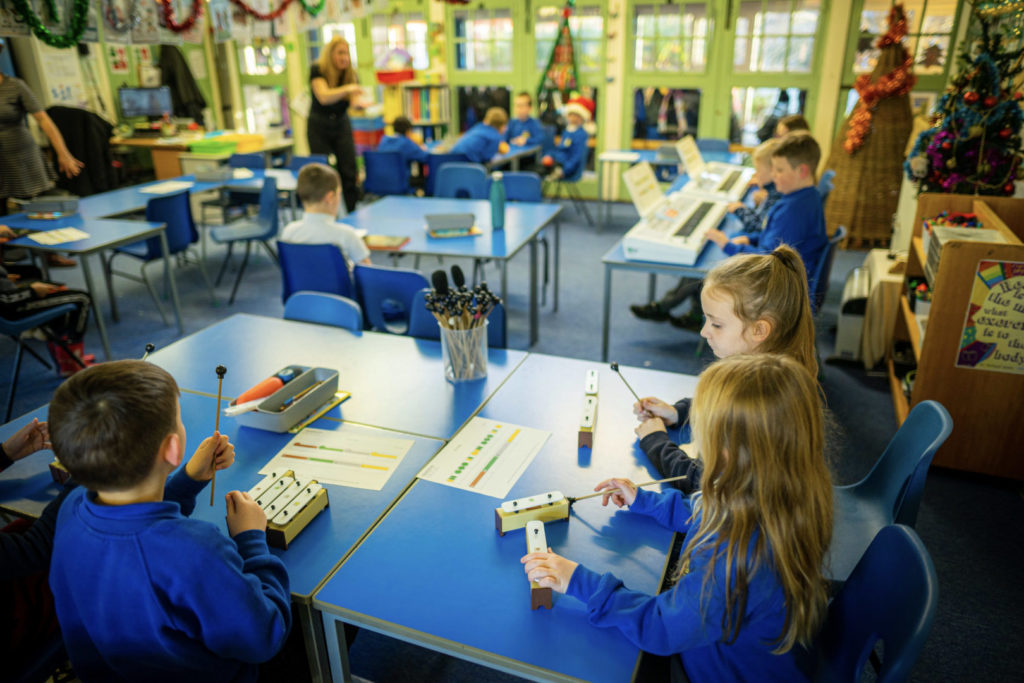
In the run up to the winter holidays, Caitlin and Rebecca from the Figurenotes team spent three weeks at Prestonfield Primary School with the Primary 4 class. Focusing on rhythm and composition, we played and created music as a whole class band using Figurenotes. We were lucky enough to have great connections with the school beforehand, so we could ask for song suggestions from the class prior to the project starting. This created a sense of ownership for the pupils from the off.

Prestonfield Primary is a local school to Figurenotes HQ, in the heart of Craigmillar, Edinburgh. The building is as beautiful as the ethos there.

Vision: Prestonfield Primary School is an inclusive community of committed learners where we all belong.

Values: We are Kind, We are Responsible, We are Ambitious

Aims: By building friendship, communication and resilience we offer a nurturing environment where our community plays, learns and grows together.

Here’s a run down of what we got up to:

Rhythm Week

Our first session was an introduction to Figurenotes rhythm. We used a tried and tested rhythm canon with body percussion to kick us off. Anyone who has done some training with us will know the rhythm canon well. It makes a great wam up! You can find it on our Figurenotes Music Hub.

We tweaked the rhythm canon to work with one of the chosen songs – Shotgun by George Ezra. This meant we could carry the rhythm work straight through the lesson.

By the end of the canon, the whole class had the colours and the rhythms down. We could then introduce a mixture of chime bars, keyboards, hand percussion, and digital instruments on tablets to play our song.

Two school children, one blonde, one with dark hair, facing each other playing wooden maracas and smiling at a school desk.

Sustain Week

Next session, we started by revisiting the rhythm canon. We tweaked the canon yet again to marry the song for this week, focusing on sustaining notes for two beats or more. Figurenotes notation is great for this, because the note is as long as it looks. The literal nature of the rhythmic notation makes it much easier to understand – the longer notes are longer on the page.

Once we had the canon down, we jumped into playing As it Was by Harry Styles. There was so much fun to be had by swapping instruments around, so everyone could have a go at each one. The class were amazing! They had a solid sense of rhythm, pulse, and bags of energy.

The back of a school child's head, brunette hair, playing a keyboard with colourful notation on a score in front of them. Teachers hand visible aiding the young person by pointing at the colourful score.

Composition Week

For our last session we wanted to create a huge piece together that was all ours. We showed some pieces of art that contained Figurenotes colours. You can easily find images to use in various online galleries available for free.

Once we had our images up, we first asked for volunteers to be the ‘Director’. Each volunteer used the image as a score, pointing at a colour and expressing how they would like it to be played. For example, going fast or slow. This was a wonderful way to allow ownership over the piece.

Finally, we all took the lead from Caitlin. She began with a picture of a bird projected in the classroom. She used her physicality to show the bird waking up, taking flight, finding berries, landing, and going to sleep.

The class was so responsive. The sound was enormous and vibrant, followed the storyline, and everyone worked so well together.

Classroom scene from a corner with students playing chime bars at tables with scores of colourful notation in front of them and a teacher in the middle of the classroom directing.

We had such a great time. The class were lovely and even drew us some pictures to say thank you.

If you would like a short Figurenotes project for your class, get in touch at Figurenotes@DrakeMusicScotland.org

#lmsmart_search_6aa4dd2bd0fc7:hover { color: rgba(30,40,69,1) !important; }#lmsmart_button_6aa4dd2bd5dfa { color: rgba(7,47,96,1); }#lmsmart_button_6aa4dd2bd5dfa:hover { color: rgba(7,47,96,1); }#lmsmart_button_6aa4dd2bd5dfa { border-color: rgba(30,40,69,1); background-color: rgba(249,232,20,1); }#lmsmart_button_6aa4dd2bd5dfa:hover { border-color: rgba(30,40,69,1); background-color: rgba(0,166,214,1); }#lmsmart_button_6aa4dd2bd7696 { color: rgba(7,47,96,1); }#lmsmart_button_6aa4dd2bd7696:hover { color: rgba(7,47,96,1); }#lmsmart_button_6aa4dd2bd7696 { border-color: rgba(30,40,69,1); background-color: rgba(249,232,20,1); }#lmsmart_button_6aa4dd2bd7696:hover { border-color: rgba(30,40,69,1); background-color: rgba(0,166,214,1); }