
Thumbjam

Uncategorised

ThumbJam & Figurenotes

ThumbJam is undoubtedly one of the greatest apps of all time! This much has always been known amongst music botherers. With over 40 exclusive real instrument samples and hundreds of ready-to-load scales, the flexibility and sensitivity of the app allow for a level of musical expression equal to a traditional instrument. Perfect for beginners and virtuosos alike. S

Here are just a few of the features:

“ThumbJam makes use of tilt and shake to add vibrato, tremolo, note bends, and volume swells for more realistic and expressive results. It supports up to eleven (or five on iPhone) simultaneous touches and up to 24 voice polyphony per instrument. You can even load more instruments simultaneously and split the screen to play them. Delay and lush stereo reverb add depth to the sound. Put on your headphones or plug in to your home stereo and prepare to be blown away.”

In fact, ThumbJam was so good upon first release, it has survived a long stint without any need for drastic changes and updates.

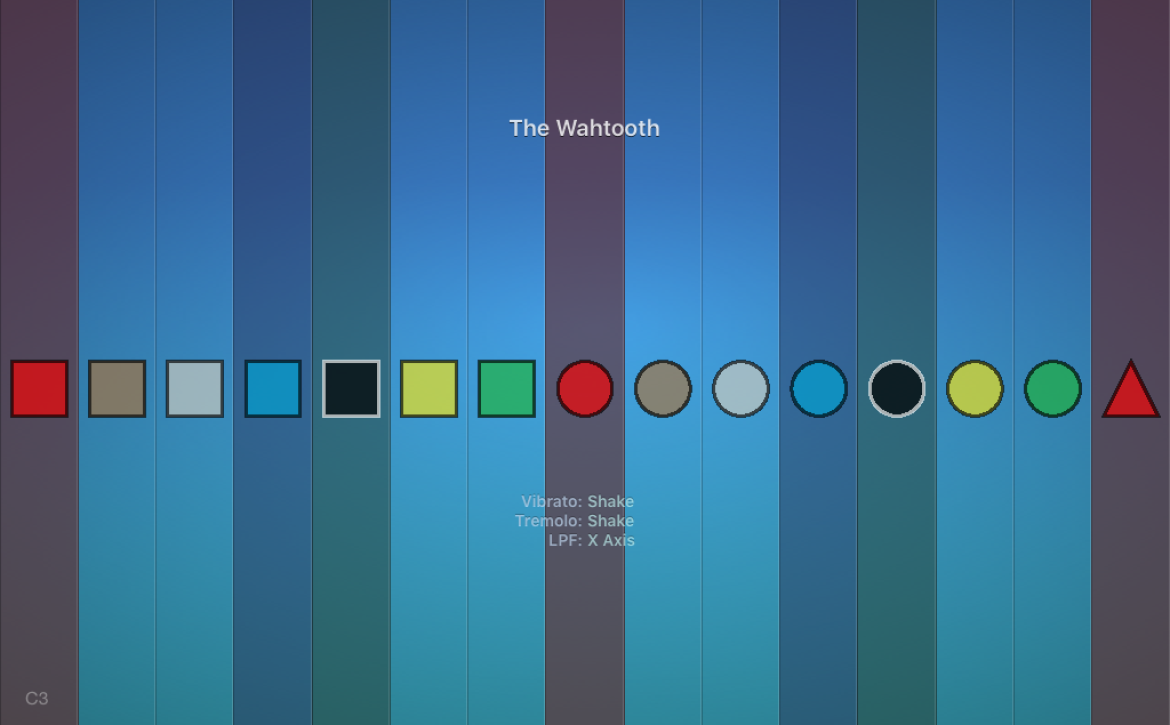
Until now! And guess what they decided to pop into their latest update? Figurenotes integration!! That’s right, now you can add Figurenotes shapes. colours or both to your ThumbJam session. It only takes a few clicks.

Here is Karen, a member of Drake Music Scotland ensembles and fantastic iPad musician, explaining how it all works:

Why not try ThumbJam and Figurenotes in your music sessions?

For more information give us a call on 0131 659 4766 or drop us an email figurenotes@drakemusicscotland.org

Watch this beautiful video of Clare Johnston’s performance of her own composition for Thumbjam.
Uncategorised

Thumbjamming with Figurenotes

At Drake Music Scotland, the charity behind Figurenotes, we love using Thumbjam. Obviously, we love using Figurenotes too, so we wanted to find a way to combine the two. Our Associate Musician, Clare Johnston, came up with a brilliant way to use Figurenotes with Thumbjam on the iPad.

Clare is a bit of a Thumbjam virtuoso. Watch her perform her beautiful composition for three voices on Thumbjam.

For Clare’s full instructions on how to combine Thumbjam with Figurenotes, take a look in the Resource Base.

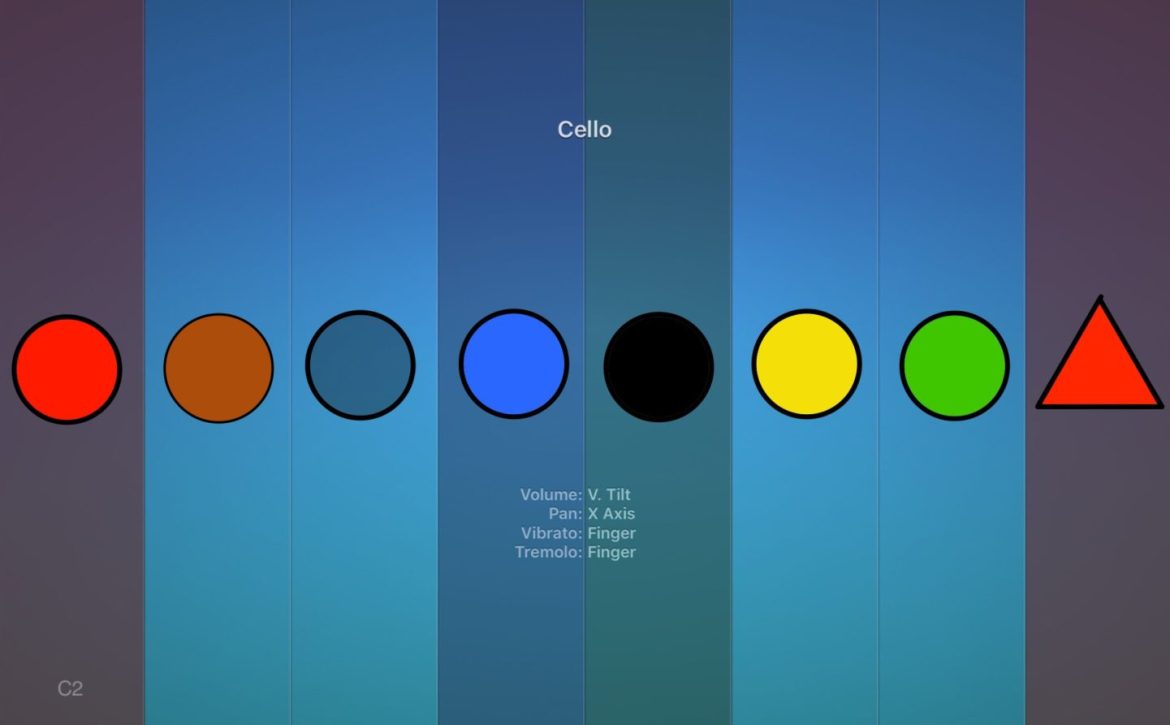
Clare created an underlay, which can be used with Thumbjam to show Figurenotes, just like in the image above. In order to do this, you will need a graphics editor capable of layers and transparency. Clare’s tutorial uses Adobe Draw on the iPad (free), cutting out the need for extra costs and an additional Mac or PC.

Set Thumbjam to the correct scale, octave, and span that you’ll be using for your piece; take a screenshot of this. Open the image in Adobe Draw so that it fills the whole screen. By creating new layers and adding a blue tint, Figurenotes shapes and colours, and setting them in the correct place on the screen, Clare has come up with a way to incorporate Figurenotes notation into Thumbjam performance. Once this process is complete, the original screenshot image is deleted, leaving you with an underlay for your Thumbjam screen.

Before moving across to the Thumbjam app, check whether the underlay image fills the whole screen by opening it using your Photos app. Then you are ready to move your underlay into Thumbjam.

  • Open Thumbjam
  • Go to the Preferences menu
  • Click on Options
  • Scroll down to Background Image
  • Click on Custom
  • Find your underlay image and click to use

The Figurenotes shape will disappear when you play that note, so some players may take some time to get used to this. They reappear as soon as you release the note.

Now marvel in the brilliance and simplicity of Figurenotes with Thumbjam. You could create several of these images for setups you use often, which means you can choose from a library of images without having to complete this process every time you want to combine Figurenotes with Thumbjam. Store the images on your iPad and you can call them up whenever they are needed. Remember you can get full, detailed instructions on the Resource Base.

Thank you, Clare!

#lmsmart_search_6a446dfcabd67:hover { color: rgba(30,40,69,1) !important; }#lmsmart_button_6a446dfcb3d8a { color: rgba(7,47,96,1); }#lmsmart_button_6a446dfcb3d8a:hover { color: rgba(7,47,96,1); }#lmsmart_button_6a446dfcb3d8a { border-color: rgba(30,40,69,1); background-color: rgba(249,232,20,1); }#lmsmart_button_6a446dfcb3d8a:hover { border-color: rgba(30,40,69,1); background-color: rgba(0,166,214,1); }#lmsmart_button_6a446dfcb5ffe { color: rgba(7,47,96,1); }#lmsmart_button_6a446dfcb5ffe:hover { color: rgba(7,47,96,1); }#lmsmart_button_6a446dfcb5ffe { border-color: rgba(30,40,69,1); background-color: rgba(249,232,20,1); }#lmsmart_button_6a446dfcb5ffe:hover { border-color: rgba(30,40,69,1); background-color: rgba(0,166,214,1); }